How to Identify Plants With Google: A Step-by-Step Guide for Beginners
Learn how to identify plants with Google using Google Lens for iPhone, plus tips for accurate results, common mistakes to avoid, and tools to confirm your findings.
How to Identify Plants With Google: A Step-by-Step Guide for Beginners
If you’ve ever walked past a colorful tree in a neighborhood park and wondered what it was, or noticed a shrub in your yard you can’t name, you don’t need a botany degree to figure it out. Learning how to identify plants with Google is a simple, accessible way to name unknown greenery right from your iPhone, no extra equipment required. For a method that works across plants, flowers, and trees, see our guide on how to identify plant species accurately.
This guide walks you through using Google’s built-in tools for plant identification, shares tips to get reliable results, and explains how to cross-check findings for both common and rare cultivars, so you can be confident in your plant’s ID before adjusting care routines.
Can You Really Identify Plants With Google?
Yes, Google can identify most common plants using Google Lens, its image recognition tool built directly into the Google app for iPhone. It works by analyzing the visual details of your photo and comparing them to its extensive database of documented plant species.
For best results, use clear, well-lit photos of key identifying features: leaves, flowers, bark, fruit, or the overall growth habit of the plant. Results are most reliable for widely documented species, but you may need to cross-check for rarer varieties or cultivars that look nearly identical to more common options. Google’s results prioritize popular, frequently searched species, so it can miss niche cultivars without extra verification.
Step-by-Step: How to Identify Plants With Google on Your iPhone
You don’t need a separate app to use Google Lens for plant identification on an iPhone; it’s built right into the main Google app. Follow these simple steps to identify any unknown plant:
- Open the Google app on your iPhone. If you don’t have it installed, you can download it for free from the App Store.
- Tap the camera icon in the right side of the search bar to open Google Lens.
- Point your camera at the plant you want to identify, framing the most distinct feature (like a cluster of leaves, a bloom, or unique bark) clearly in the viewfinder.
- Tap the white shutter button to capture the image. If Google doesn’t automatically categorize the image as a plant, select the “Plants” filter at the bottom of the screen to narrow results to plant species.
- Review the top results, which will include common and scientific names, key facts about the species, and links to related web resources.
If you took a photo of a plant earlier and want to identify it later, you can upload existing photos from your camera roll instead of taking a new one directly in Lens.
Tips to Get More Accurate Google Plant ID Results
The quality of your photos has a huge impact on how accurate your results are. Use these simple tips to improve your matches when using Google for plant identification:
- Take photos in natural, bright light, avoiding harsh midday sun that washes out colors or deep shade that makes details hard to see. Overcast days often provide ideal light for plant photos, as they reduce glare without darkening key features.
- Capture multiple angles: take one photo of the full plant to show its size and growth habit, one close-up of the front and back of a leaf, one of any flowers or fruit, and for trees, a shot of the bark. More context helps the algorithm distinguish between similar species.
- Avoid cluttered backgrounds that may distract the tool. If possible, hold a small stem or leaf up against a plain wall or sky, or zoom in to crop out surrounding grass, debris, or other plants.
- Try to identify plants when they are healthy and showing their typical features. Damaged, diseased, or pruned plants, or plants photographed outside of their blooming or fall foliage season, may return less reliable results.
Example: Identifying Common Maple Varieties With Google
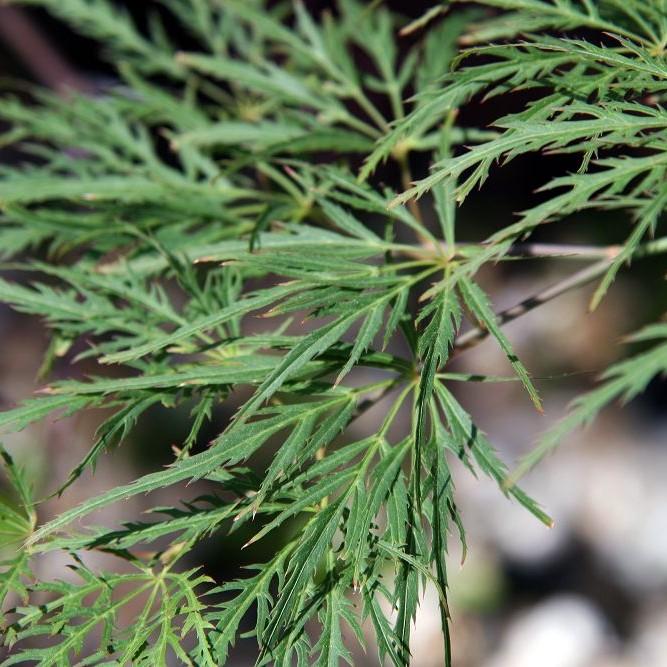
Maple trees are a great test case for plant ID, as they have distinct leaf shapes but dozens of similar-looking cultivars that can be hard to tell apart at first glance. Let’s walk through a sample identification of a Flame Amur Maple to see how the process works.
If you take a photo of a Flame Amur Maple in fall, when its leaves turn bright, fiery red, Google will likely return Amur Maple as the top result. To narrow it down to the ‘Flame’ cultivar, you can cross-check the listed details: this variety stays small to medium at maturity, has the signature vibrant red fall foliage, and thrives in full sun.
Similar-looking varieties like the Aoyagi Japanese Maple may show up in your results, so you’ll need to compare additional details to confirm the match. The Aoyagi Japanese Maple has bright green, highly textured leaves year-round, and stays compact, growing as a deciduous shrub rather than a small tree. You may also see results for the Higasa Yama Japanese Maple, which prefers partial shade rather than full sun, so if your tree is growing in an unshaded yard, that is likely not the right match.
This example shows how easy it is to get a close but not exact match from Google, especially for plants with dozens of cultivars. A little extra cross-checking goes a long way to confirming the correct ID.
Common Mistakes to Avoid When Using Google for Plant Identification
Even with clear photos, it’s easy to get an incorrect match if you skip key context or make these common errors:
- Only taking a photo of a single leaf: Many unrelated plant species have similar leaf shapes. Context about the plant’s overall size, growth habit, bark, and flowers is critical for accurate identification.
- Assuming the top result is 100% accurate: Google prioritizes popular, frequently searched species, not always exact matches for rare cultivars. The first result is a good starting point, not a definitive answer.
- Forgetting to factor in your location and growing zone: A plant that is only hardy to tropical growing zones is unlikely to be growing outdoors in a cold climate. If the top result is not known to grow in your area, it is probably a mismatch.
- Ignoring key distinguishing features: Bark texture, flower color, fruit, and thorns or fuzzy leaves are often the details that set similar species apart. If the result you get does not match all of your plant’s visible traits, keep looking.
If you’re identifying a plant you have in your home or yard, comparing the result to your plant’s actual care needs can also help you spot a mismatch. For example, if the top result says the plant requires full shade but your plant has thrived in direct sun for years, the ID is probably wrong.
How to Cross-Check Google’s Plant ID Results
Even if Google returns a seemingly perfect match, it’s smart to confirm the ID before adjusting care routines, or assuming the plant is safe for pets or kids. Follow these steps to verify the result:
First, compare all key features listed in the result to your plant. Does the mature size match? What about leaf shape, flower color, bark texture, and listed growing requirements? If any details don’t align, the ID may be incorrect.
Next, use a dedicated plant identification and care tool like Sproutly to scan the plant a second time. Sproutly’s plant database includes detailed, cultivar-specific care info, pet safety status, and growing zone guidance that may not show up in general Google results, making it easier to distinguish between similar-looking varieties.
Finally, cross-reference with local extension office resources or reputable plant encyclopedias to confirm the species will grow in your area and matches all your plant’s visible traits. Local extension resources are particularly helpful for native plants that may not be widely documented in national databases.
What to Do After You Identify Your Plant
Once you’ve confirmed your plant’s identity, you can take steps to keep it healthy long-term. First, note its key care requirements: does it need full sun, regular watering, well-draining soil, or high humidity? For example, if you’ve identified a Flame Amur Maple, you’ll know it prefers full sun, loves humidity, and is safe for pets, so you won’t have to worry about keeping it away from curious dogs or cats.
If you identified a new plant you just brought home, save its name and care needs in a plant care tracker so you don’t forget its requirements over time. Sproutly can help here too: once you confirm your plant’s ID, you can add it to your personal plant list and get customized care reminders tailored to its specific needs, so you never miss a watering, fertilizing, or pruning session.
FAQ
Is Google Lens for iPhone accurate for identifying plants?
Google Lens for iPhone is often accurate for common, widely documented plant species, but it may struggle to distinguish between similar cultivars (like different varieties of Japanese maple) or rare plants. Always cross-check results with a dedicated plant database or tool for the most reliable ID.
Can I use Google to identify plants from photos in my camera roll?
Yes. When you open Google Lens in the Google app on your iPhone, you can select a photo from your camera roll instead of taking a new one to identify plants you’ve already photographed.
What features should I photograph for the best results when learning how to identify plants with Google?
For the most accurate results, take clear photos of the plant’s most distinct features: leaves, flowers, fruit, bark, and the overall shape of the plant. Multiple photos from different angles will help Google narrow down the correct species.
Can Google tell me if a plant is safe for pets?
Google may include pet safety information in top results for common plants, but this info is not always verified or included for rarer species. For confirmed pet safety details, cross-check your plant’s ID with a reputable plant encyclopedia or app like Sproutly.
Try Sproutly
Once you’ve used Google to get a starting ID for your plant, Sproutly can help you confirm the match, access cultivar-specific care guidance, and track your plant’s health over time. With personalized care reminders, verified pet safety information, and a detailed plant database, Sproutly makes it easy to keep all your plants thriving. Try Sproutly today to take the guesswork out of plant care.
Похожие статьи
Ещё руководства, которые вам понравятся
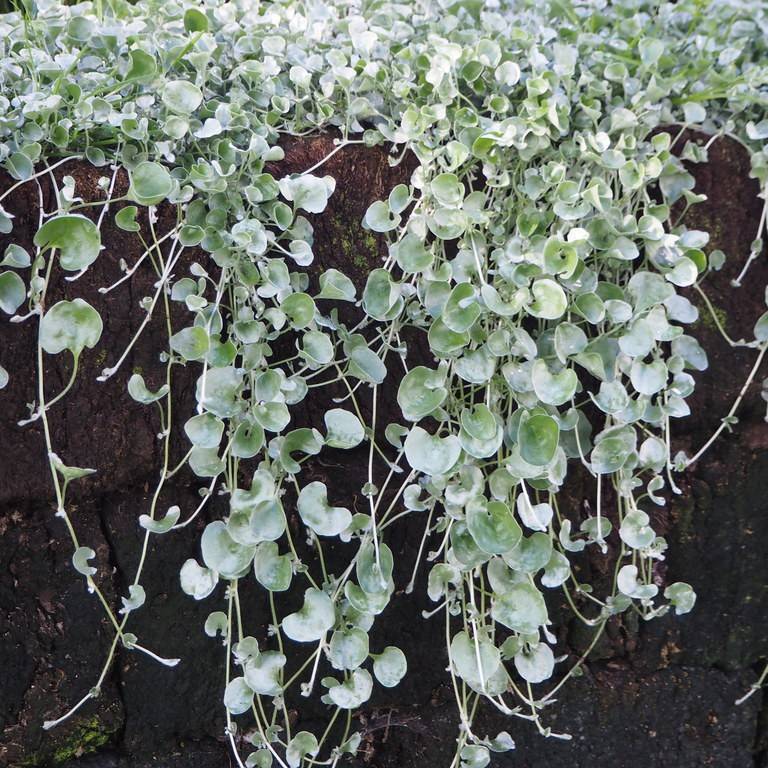
Dichondra Argentea (Silver Falls): Complete Care, Growing, and Use Guide
Learn how to grow and care for Dichondra argentea 'Silver Falls', a drought-tolerant, pet-safe trailing perennial perfect for hanging baskets and ground cover.
2026-08-04 · 11 min read
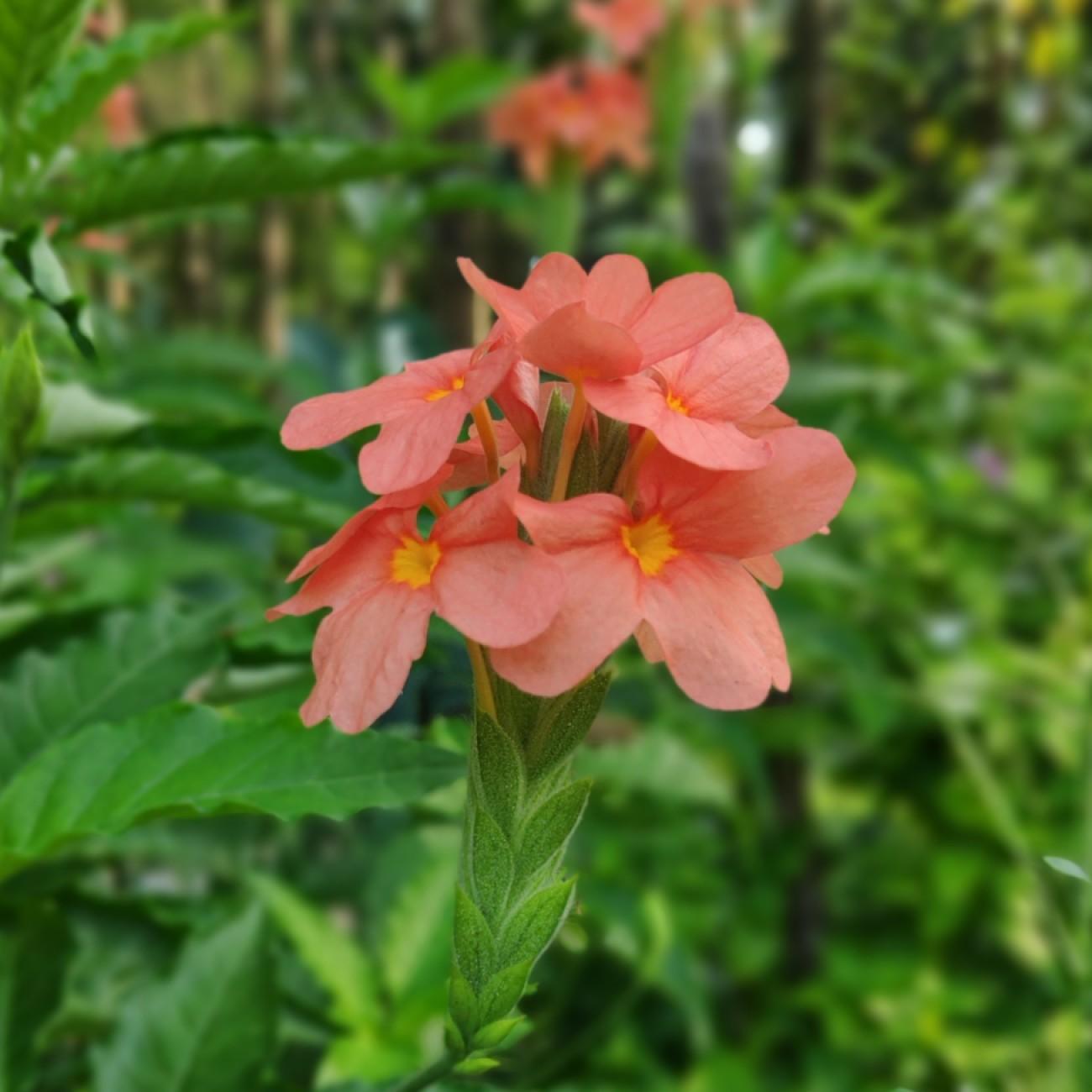
Firecracker Flower: Complete Care, Cultivation, and Identification Guide
Learn how to grow and care for firecracker flower (Crossandra infundibuliformis), a pet-safe, humidity-loving tropical houseplant with bright tubular blooms.
2026-08-04 · 19 min read
Juniperus Squamata Blue Star: Complete Care, Design, and Identification Guide
Learn how to grow, care for, and design with Juniperus squamata blue star, a low-growing, pet-safe evergreen shrub with striking silvery-blue foliage.
2026-08-03 · 14 min read